
This one’s quick – well, quick-ish. If you’ve ever looked at a Windows device in Intune and wondered why the primary user is someone who left the company two years ago – or the technician who enrolled it – then this one’s for you! If you wish you had the same ability in Intune that you had in ConfigMgr to automatically set the primary user, this one is for you too!
Bring me to the relevant solution!
Essential knowledge
The primary user is set once, usually during enrollment, and then it just… stays. Intune doesn’t care who actually logs on every day. That’s fine until something depends on it: Company Portal, self-service BitLocker key recovery, reporting, or simply your service desk trying to find out who to call.
So the question is simple: who signs in on this device the most? Entra ID already knows. Every successful Windows sign-in ends up in the sign-in logs. The catch is that those logs only stick around for a limited time and querying 28 days of them for every device, every week, is not something you want to do in one go.
However, while this is a problem in some environments, the real issue is mostly organizational. I usually dislike using technical solutions for organizational problems, but I think this one can be valuable. Do not use this solution to enroll devices for users and then fix it later. This will solve the following organizational issues:
- User gave their device to someone else to work with.
- Admin enrolls device for user (using Autopilot for example).
- Existing enrollments where an administrator manually joined devices for users (which requires admin rights and an Intune license).
How it works

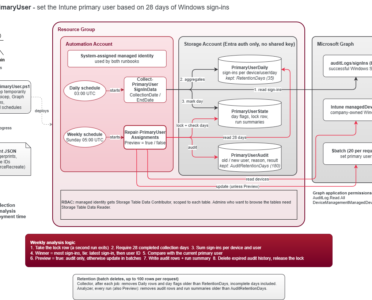
The solution lives in an Azure Automation account and consists of two runbooks:
- Collect-PrimaryUserSignInData runs every day at 03:00 UTC. The successful Windows Sign In events of the previous (completed!) UTC day are read from Microsoft Graph, counted per device and user, and the aggregates are written to Azure Table Storage. Once a day is complete, it is marked as such – unless the results are nearly empty. A day with zero sign-ins across hundreds of devices is more likely a technical issue than a quiet Sunday, so that day is marked as
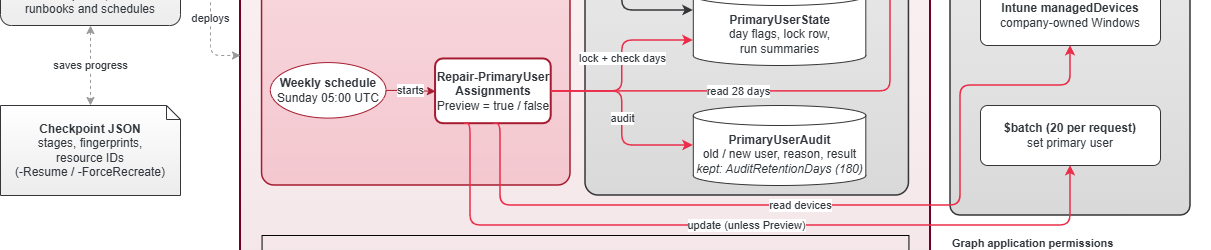
LowSignInCountand the job fails. It will tell you which day it was. How few sign-ins is too few is up to you. TheMinimumSignInCountdefaults to 1; something like 100 is stricter; and 0 accepts a day that was truly empty. - Repair-PrimaryUserAssignments runs every Sunday at 05:00 UTC. It takes a lock, checks that all 28 days are complete, adds everything up and picks the user with the most sign-ins. A tie goes to the latest sign-in. If the winner differs from the current primary user of a company-owned Windows device, it gets updated using Graph batches.
Every decision ends up in an audit table – old user, new user (with their UPNs), sign-in counts, why, and whether it worked. If data is missing, Graph acts up, or another run holds the lock, the analyzer simply stops before touching anything. I’d rather have it do nothing than do the wrong thing.
To keep Table Storage tidy, the collector keeps 35 days of daily data and removes older rows, including incomplete days. The analyzer keeps 180 days of audit history and run summaries. Both clean up in batches of up to 100 rows.
Both runbooks authenticate with the system-assigned managed identity. No secrets, no certificates, no shared keys on the storage account. The identity only needs:
AuditLog.Read.AllDeviceManagementManagedDevices.ReadWrite.AllGroupMember.Read.AllDevice.Read.All- Storage Table Data Contributor – scoped to the three tables, not the whole account
Deployment
You will need PowerShell 7.2 or a later 7.x version, as well as the ability to create resources and grant Graph application permissions. Since the deployment creates a storage account, you also need access to a subscription and the ability to assign roles within it. You don’t need Bicep on your machine. The script downloads it temporarily using -InstallTemporaryBicep; otherwise, you will be asked to confirm the download. Keep the folder structure from the repository – the script first looks for the runbooks in “..\Runbooks” and then in the folder right next to its own location.
Only Contributor on the subscription? That works too. The script deploys everything except the table role assignments and then prints exactly what someone with Owner or User Access Administrator needs to assign. Once that’s done, run the script again with -Resume (see below).
.\Deployment\Deploy-RepairPrimaryUser.ps1 `
    -SubscriptionId '<subscription-id>' `
    -ResourceGroupName 'rg-repair-primary-user' `
    -Location 'germanywestcentral' `
    -StorageAccountName '<globally-unique-storage-name>' `
    -InstallMissingModules `
    -InstallTemporaryBicep
Deployments fail. That’s just life with Azure. Instead of starting over, the script writes a checkpoint JSON after every stage. Run it again with -Resume and it continues where it stopped, verifying what already exists along the way. -ForceRecreate starts a fresh checkpoint and reconciles every stage again (it doesn’t delete anything in Azure).
Excluding devices
Not every device should have a primary user. Shared devices, kiosks, or the PCs in your training room don’t belong to anyone, and “whoever signed in the most” is exactly the wrong answer for them. Intune even has a name for a device without a primary user: a Shared Device. The Company Portal labels it as shared, and self-service actions like reset, rename, and retire are off the table.
So you can exclude devices – by Entra group, by device name prefix, or both. Excluded devices never get a primary user. If one already has one (say, the technician who enrolled it), the analyzer removes it, even if nobody ever signed in on that device.
Both live in Automation variables, which you’ll find in the Automation account under Shared Resources > Variables:
RepairPrimaryUser-ExcludedGroupIdstakes group object IDs. Nested groups count, too.RepairPrimaryUser-ExcludedDeviceNamePrefixestakes prefixes likeKIOSK-. Case doesn’t matter.
Separate multiple entries with commas. You can edit them right there, or let the deployment script do it – during the first deployment or later with -Resume:
.\Deployment\Deploy-RepairPrimaryUser.ps1 -Resume `
    -ExcludedGroupIds '<group-object-id>' `
    -ExcludedDeviceNamePrefixes 'KIOSK-', 'LAB-'
Leave a parameter out and its variable stays as it is, so your changes in the portal survive the next deployment. Nothing to exclude? Then there’s nothing to do. Both parameters are optional, the deployment creates the variables empty, and empty means no exclusions.
A few things worth knowing:
- Add the devices to the group, not their users. The job output shows how many devices each group contributed, and a group without any gets you a warning.
- Group membership in Graph is eventually consistent. A device you add right before a run might only be excluded in the next one.
- Groups need two more Graph permissions:
GroupMember.Read.AllandDevice.Read.All. The deployment script grants them right away, so you can add groups later without redeploying. Prefixes don’t need anything extra. - A missing variable, an invalid entry, a deleted group, or a missing permission stops the analyzer before it touches anything. Same rule as before: nothing is better than the wrong thing.
Removals show up in the preview like any other change: (none) as the new primary user, and Excluded device plus the matching rule as the reason. The audit table records that rule, too. So preview after changing exclusions – a prefix like DESKTOP might match a lot more devices than you’d like.
Before you let it loose
Please don’t let it change anything on day one. Here’s what I’d do:
- Run the collector runbook once to see if data is coming in, providing the storage account name.
- Backfill the last 28 days.
CollectionDateand the optionalCollectionEndDate(bothyyyy-MM-dd, UTC) let you collect a whole range in one job – handy for smaller environments. Bigger tenants might want to split that up. If a day comes back empty, just run the same range again – completed days are skipped and only the flagged ones get collected again. - Start the analyzer with
Previewset totrue. The job output lists up to 50 devices that would change (PreviewDeviceCountgoes up to 1000) with device name, Intune device ID, the current and new primary user, their sign-in counts, and the reason. The full list is in the audit table. By default, only the managed identity of the runbook has access to it. Assign someone access (see below). Nothing changes in preview. - Happy with the result? Let the weekly schedule do its thing, otherwise unlink the schedule from the runbook(!)
Want to look at the tables yourself in the Storage browser? Owner or Contributor is not enough, since shared-key access is disabled. Give yourself Storage Table Data Reader on the storage account and stick to Entra authentication.


Finishing thoughts
Is the primary user the most exciting attribute in Intune? Certainly not. But it’s one of those things that quietly rots over time, and nobody notices until a helpdesk ticket lands on the desk of someone who hasn’t touched that device in months. Let the data decide – but always preview first. Until next time!
One last note: in theory, you can run these scripts in any automation platform. Without Azure Automation’s managed identity, though, you’ll need to extend the authentication, for example with an app registration and its enterprise application (service principal), and grant it the required Graph permissions and table access.